# Review and push changes
> See what the agent changed, send feedback, and open a pull request without leaving Sesh.
Source: https://sesh.codes/docs/review-and-push/
Every session on its own branch has a **Changes** view: what the branch changed, its commits, and buttons to push it and open a pull request. It updates as the agent works.
## Open Changes
Click **Changes** (±) in the session's toolbar. Click it again to go back to the chat.
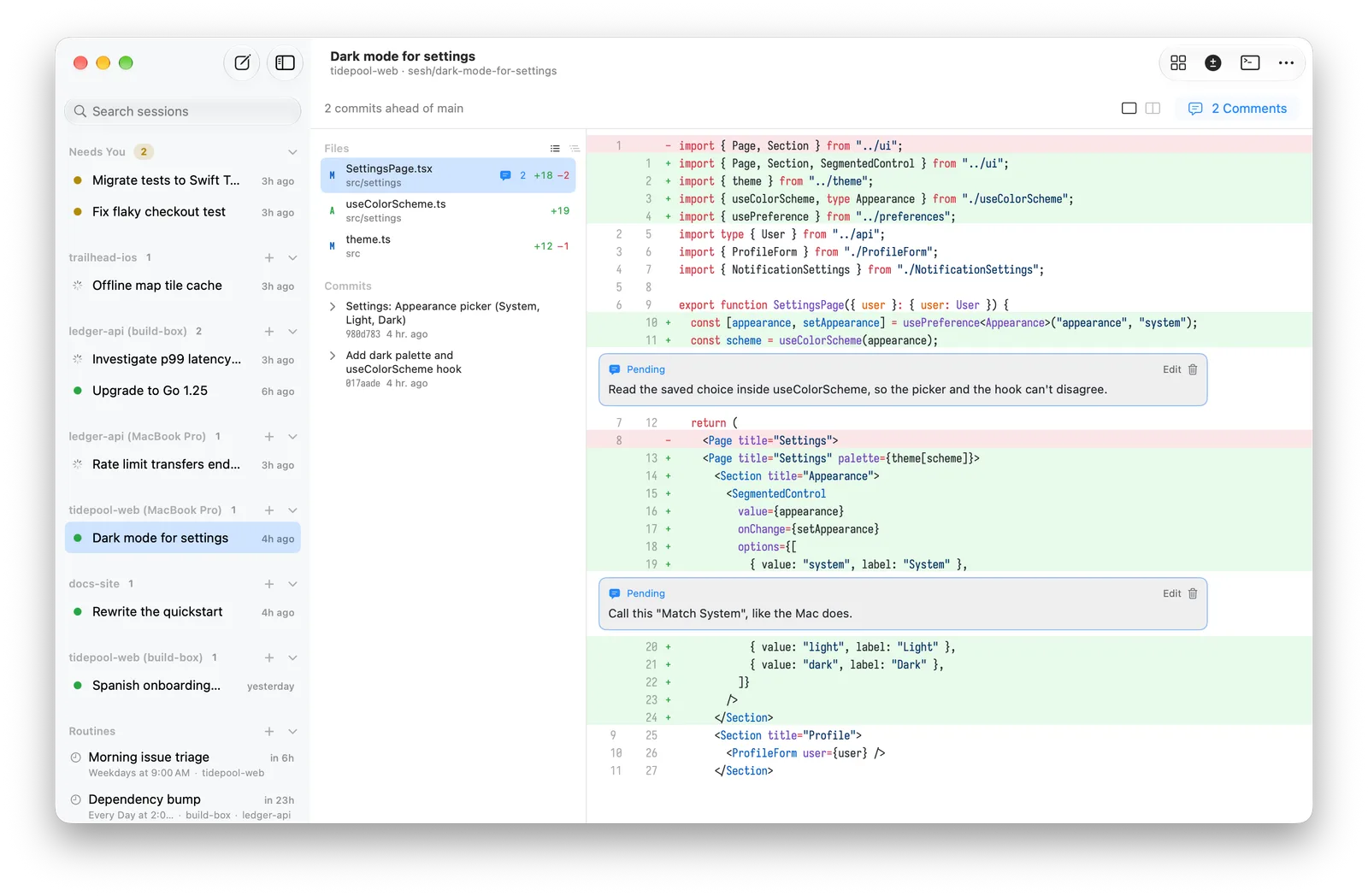
The bar at the top says where the branch stands, like "3 commits ahead of origin/main · 1 behind · pushed".
- **Files** lists everything the branch changed, committed or not. Pick a file to see its diff.
- **Commits** lists the branch's commits. Expand one to see its files.
- Use the icons to switch between a list and a folder tree, and between inline and side-by-side diffs. Sesh remembers both.
## Comment on lines
Review the diff like a pull request: leave comments on the lines you'd change, then send them all to the agent as one message.
1. Click a line number, or drag down the numbers to pick several lines. Or select code and click **Comment**.
2. Type the comment under the lines and click **Add Comment** (⌘↩). Esc cancels.
3. Repeat across as many files as you like. Each comment shows under its lines, marked **Pending**, with **Edit** and Delete. Files with comments show a count.
4. Click **N Comments** in the bar above the diff to see them all, add a note on the whole review if you like, and click **Send to Agent**.
The agent gets one message with every comment, the lines it's about, and your note. If it's working, the review waits in line like any message. The chat shows it as a review card.
On iPhone, tap a line (or select code, then **Comment**) and write the comment in the sheet that opens.
### After you send
- Sent comments stay under their lines, marked "Sent 5 min ago". Click × to remove one, or **Clear N Sent** in the review.
- Comments follow their lines as the agent edits the file. When the lines are gone, the comment moves above the diff, marked **Outdated**.
- **Discard All** in the review deletes comments you haven't sent.
Comments are kept with the session on its machine, so you can start a review on the Mac and finish it on your iPad.
## Send code to the agent
For a quick question rather than a review:
- **Select code in a diff** and click **Send to Agent**. The lines go into your message, labelled with the file and line numbers.
- **Right-click a file** and choose **Send File to Agent** to mention the whole file.
Either way Sesh switches back to the chat so you can finish your message.
## Push and open a pull request
1. Click **Push** to push the branch.
2. Click **Create Pull Request**. It opens the new pull request page on GitHub, GitLab (**Create Merge Request**), Bitbucket, Azure DevOps, Gitea, Forgejo, Codeberg or Tangled.
3. Its menu has **Open Branch** and **Open Repository**.
Pushing uses that machine's own git login. If it fails, open **File › New Terminal on** the machine and run `gh auth login`, or add an SSH key there.
### See the pull request's status
Once the pull request is open, **Outputs** shows it: open, draft, merged or closed, its checks, and its review.
1. For private repositories, sign in to the forge's command-line tool once on that machine (open **File › New Terminal on** it):
- GitHub: `gh auth login`
- GitLab: `glab auth login`
- Gitea, Forgejo or Codeberg: `gt auth login`
- Azure DevOps: `az login`
2. Without a signed-in CLI, Sesh still finds pull requests in public repositories. Tangled and Bitbucket always work this way: Tangled needs no login, and Bitbucket only shows public repositories.
3. Tangled doesn't have reviews yet, so its pull requests show their state and checks only.
## Catch up with the base branch
When the base branch has moved on, **Sync** appears. It merges the base into the session's branch. It never rebases, so it's safe after you've pushed.
Sync needs everything committed first.
### If the merge has conflicts
Sesh stops and lists the files. Then:
- **Ask the Agent to Resolve** sends the agent a message to fix them and finish the merge.
- **Open Terminal** to fix them yourself.
- **Abort Merge** to undo the sync.
## Good to know
- You can't stage or commit from Sesh. Ask the agent to commit.
- Review comments aren't in the Linux app yet. Use **Send to Agent** there.
- Changes refreshes when the agent does something, not when you edit files yourself. Switch away and back to refresh.
- Self-hosted Bitbucket Server isn't recognized. Set the forge in [.sesh/config.json](https://sesh.codes/docs/project-setup.md).
- Sessions that work in the folder, without **New branch**, show only uncommitted changes, and can't push or sync.